+44 753 718 3990
  hello@devmontdigital.io
To new businesses, give you the expertise, approaches, and techniques you should know to be a super hero.
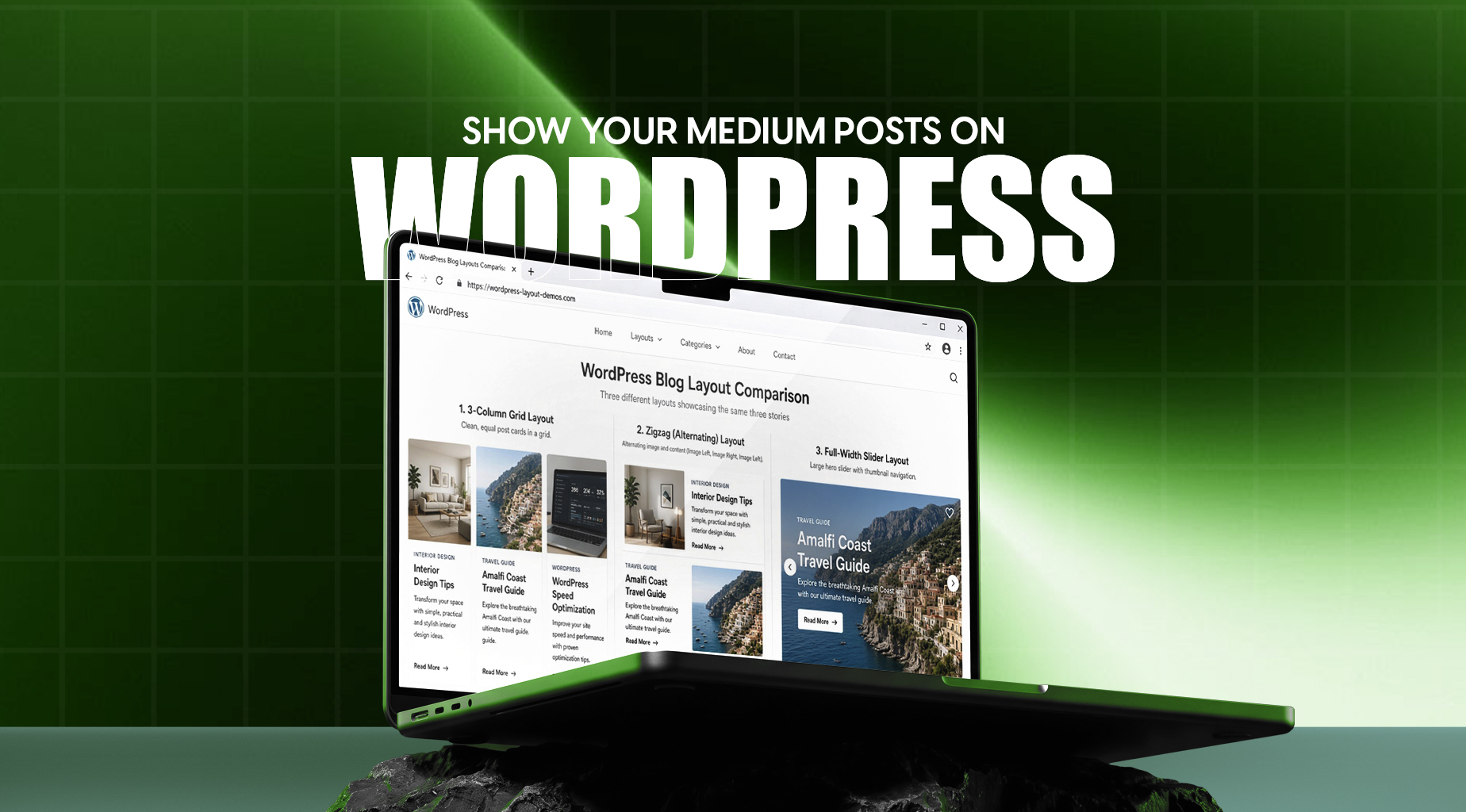
You publish on Medium, but your own website shows none of it. A visitor who lands on your homepage has no idea you write at all, and the stories you spent hours on sit on someone else’s domain. Linking to them by hand works for a week. Then you publish again and the page is out of date.
This guide shows how to put your latest Medium stories on any WordPress page and keep them current without editing the page again. It takes three steps and one shortcode. It also covers what the setup will not do, so you can decide whether it fits before you build on it.
Your website is the one place you control, and most visitors never see your Medium profile. Showing recent stories there does three jobs. It gives founders and marketing leads visible proof of expertise on the pages buyers actually read. It puts your writing in front of every visitor, not only the people who already follow you. And once it is set up, it updates itself.
We built a free plugin for this, part of our set of free WordPress plugins, and this guide uses it. First, here is how it compares with the alternatives.
| Approach | Effort | What visitors see | Updates itself | Best for |
|---|---|---|---|---|
| Link to stories by hand | Low, then rising | Whatever you build | No | One or two featured stories |
| WordPress RSS block | Low | Titles, dates and excerpts, no cover images | Yes | A plain latest-writing list |
| Display Medium Stories plugin | Low | Cover images in grid, masonry, zig zag or slider layouts | Yes | A designed section on a home or about page |
| Copy stories into WordPress | High | Full posts on your own domain | No | Moving your writing to your own site |
Choose the RSS block if all you need is a plain list. Choose a plugin when you want cover images and a layout that matches your site. Copying stories across creates two versions of the same text, and you need a plan for which one search engines should treat as the original. The rest of this guide covers the plugin route.
In your WordPress admin, go to Plugins, then Add New, search for Display Medium Stories, and click Install and then Activate. You can also get it from its WordPress.org page. It needs WordPress 6.0 or higher and PHP 8.0 or higher.
Paste this shortcode into any page, post, or widget area that accepts shortcodes, using your own Medium handle:
Include the @. Medium’s profile feeds live at medium.com/feed/@username, and the plugin builds that address from your handle, so a handle without the @ returns nothing. To skip the newest stories, add an offset. This version leaves out the first two:
Writing for a Medium publication instead of a personal profile? Medium publishes feeds for publications too, and the plugin builds the feed address from whatever handle you give it, so try the publication name.
Layout and styling live on the plugin’s Settings and Layout Style pages, not in the shortcode.
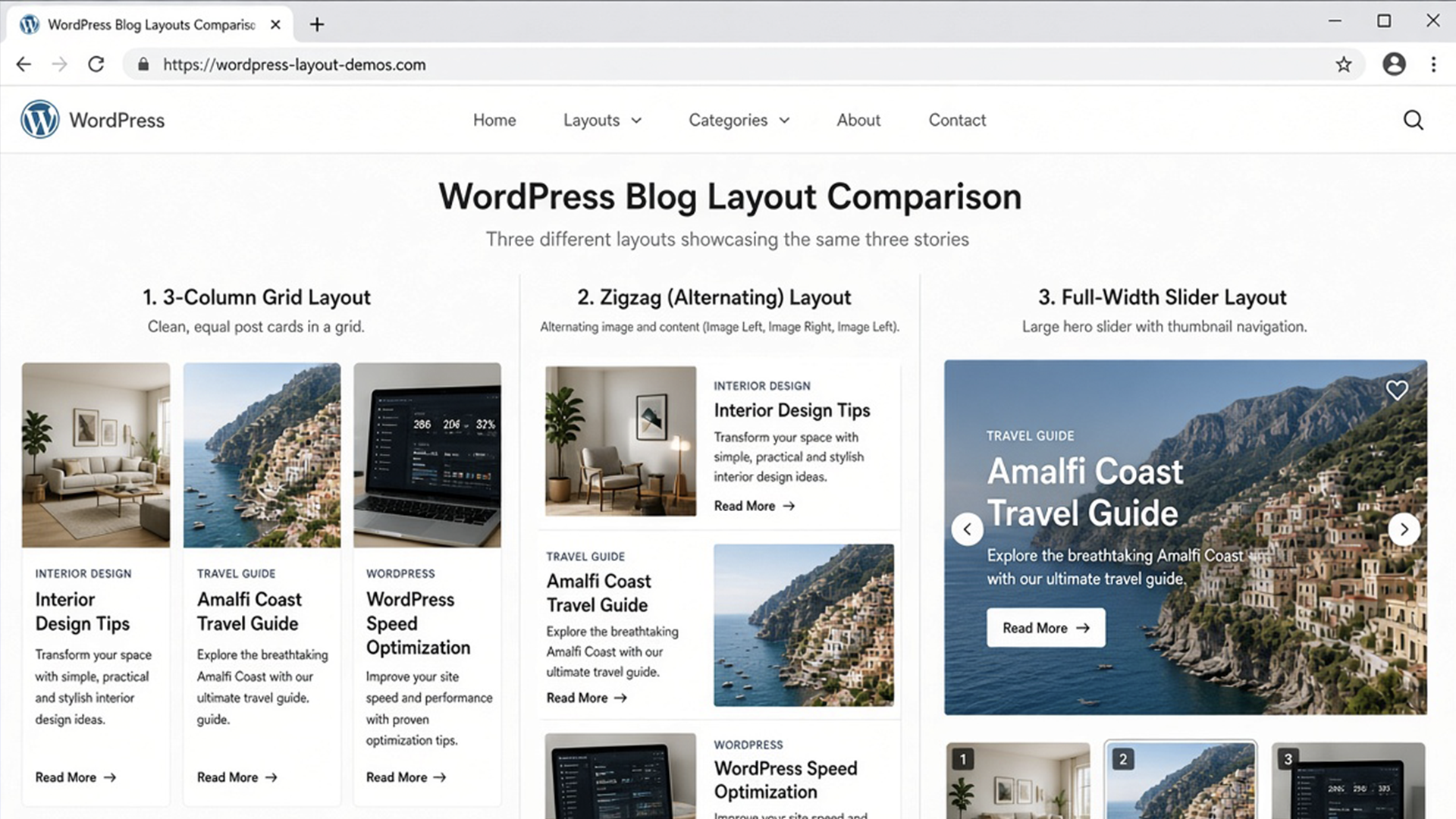
You can choose from:
Each card shows a cover image, the title, a short excerpt, the date, and a button that opens the story on Medium. A story with no usable image gets a default placeholder.
For three to six stories, a grid is the safest choice. Sliders save space but hide stories behind arrows, which small screens punish. Whatever you pick, check it on a phone. Our mobile interface design guide covers tap targets and layouts that hold up on small screens.
Three placements work well. A “Latest writing” row under the hero on your homepage shows buyers you know your field. A block next to your bio on the About page backs up the claims you make there. A section at the end of a service page gives hesitant visitors something to read before they decide.
Because the feed only carries your most recent stories, add a plain link to your full Medium profile under the list so older pieces stay reachable. And write down the handle and where the shortcode lives. Whoever edits the site next should not have to hunt for it.
| What you see | Likely cause | Fix |
|---|---|---|
| Invalid Medium handle. Please include the @ symbol in the handle. | The handle was typed without the @ | Use @yourusername |
| No posts found! | A typo in the handle, a profile with no public stories, or the feed service did not respond | Open medium.com/feed/@yourusername in a browser. If it loads, reload your page. If not, check the handle |
| A default image on a card | The story has no image the plugin can use | Add a cover image to the story on Medium. The plugin uses the first image in the story |

Content Manager at Devmont Digital
A fresh WordPress install ships with features most business sites never use. Some add background requests, one opens a well-known login attack path, and a few load code on every page for a nice-to-have. The usual advice online is to switch them all off. That advice breaks sites. This guide gives a verdict on the […]
Read moreIf you’re comparing Laravel and WordPress, you’ve probably already been given a useless answer: “it depends.” It does depend, but on things specific enough to actually decide with. The two aren’t really competitors. WordPress is a content management system, and Laravel is a framework for building applications. Asking which is “better” is like asking whether […]
Read moreKeeping an app fresh and running smoothly means updates are part of the regular routine.
Read more